In this information age, information media such as internet speed is very important. Moreover, if this is related to the speed of your internet access as a student, student and as an online business or other internet surfers. Speed is a must! mandatory! and ... should not be negotiable!This computer tips to speed up your internet connection without the software and easy!2 creative tips that you will learn are: Tip 1: Tweak Registry Tip 2: Tweak Internet Browser (Mozilla Firefox)
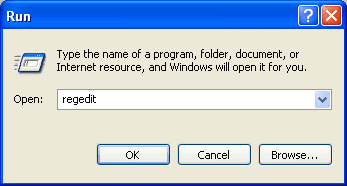
Registry tweaksTweak the registry is done in your windows registry, how:1. Select the start menu then run2. Type regedit in the run dialog windowTips Speed up Internet Connection3. Look for this registry address: HKEY_LOCAL_MACHINE \ SYSTEM \ Current ControlSet \ Services \ Tcpip \ ServiceProvider then work out how to 4-74. Select DnsPriority change the value to 15. Select HostsPriority change the value to 16. Select LocalPriority change the value to 17. Select NetbtPriority change the value to 18. Close the Registry Editor9. Restart Your Computer
Tweak FIREFOX
Tweak firefox used to speed up Mozilla Firefox browser when you open the desired URL, but in doing so you must be very careful and cautious. Here's how:A. In Mozilla firefox type "about: config" (without quotation marks)2. Exit your browser warnings about the warranty, therefore you must be careful in tweaking firefox. Click I'll be careful, I promise!Tips Speed up Internet connection3. Change the value of a setting or if it was not there make your own by right click select New. Integer To select data in the form of numbers, select the Boolean to true / false.For ADSL users:
Set "network.http.max-connections: 64" Set "network.http.max-connections-per-server: 21" Set "network.http.max-persistent-connections-per-server: 8" Set "network.http.pipelining: true" Set "network.http.pipelining.maxrequests: 100" Set "network.http.proxy.pipelining: true" Set "nglayout.initialpaint.delay: 0"For DSL users:
Set "network.http.pipelining: true" Set "network.http.proxy.pipelining: true" Set "network.http.pipelining.maxrequests: 64" Set "nglayout.initialpaint.delay: 0"For users of DIAL UP
Set "browser.cache.disk_cache_ssl: true" Set "browser.xul.error_pages.enabled: true" Set "content.interrupt.parsing: true" Set "content.max.tokenizing.time: 3000000" Set "content.maxtextrun: 8191" Set "content.notify.backoffcount: 5" Set "content.notify.interval: 750 000" Set "content.notify.ontimer: true" Set "content.switch.threshold: 750 000" Set "network.http.max-connections: 32" Set "network.http.max-connections-per-server: 8" Set "network.http.max-persistent-connections-per-proxy: 8" Set "network.http.max-persistent-connections-per-server: 4" Set "network.http.pipelining: true" Set "network.http.pipelining.maxrequests: 8" Set "network.http.proxy.pipelining: true" Set "plugin.expose_full_path: true" Set "signed.applets.codebase_principal_support: true"Thus Tricks Computer Tips on How to Speed up Internet connection without the software may help you.
Meanwhile, JunSakaguchiofJapan's NationalInstituteofInformationandCommunicationsTechnologyinTokyowas also able totransmit data with100-terabit-per-secondbenchmarksby developing afiberwith7cores.Eachcoreof eachcarry5.6terabitspersecond, yieldinga total of109terabitspersecond.
For those of youwholike tosurfit's good tohaveto make changestoyour DNStoget thefastest DNS toincrease the Internetspeed .Ifyou arelesssatisfactoryfor internet connectionyou candothis tricktospeed upyouinternetaccess.
DomainNameServer(DNS) is atranslatorthatconvertswebnamestoIPaddresses.Whenyouclickon thehyper-links,orenter an addresslikewww.amazingnotes.comin your browser,a browsersendsthenametothe DNS serverthathelpsrouterequeststo theproper IPaddressURL.WhenyouconfigureyourISP'sinternet connectionis set uptouse theISP's DNSservice.However,you arefreeto useother alternatives.
Thus,youcanuseOpenDNSor GooglePublicDNSetc,toreplaceyourISP's DNS.OpenDNSoffersrichcontent-filteringoptionsforprivacyandfamilysecurity.GooglePubliccontrolhas beenengineeredbyGoogleforfaster performanceandbetter security.However,because thecomplexvariablesinvolved, nosingleoptioncansaid tobe thebestforall.So how doyouknow theDNSisthefastestforyou?NameBenchyoucanusethe tool,which isa free tooltohelpyoufind thefastestDNS.
Downloadandrun theapplicationonwindowsnamebenchtypingDNSname servertofind outthat youuseto go to theCommandpromptand thentyping"ipconfig/all"without quotesand hit enter andtherewill bevisibleaddressyour currentDNSproviderandyour Internetconnection.
Nowswitchtoyour DNSentriesnamebenchtoolifyouwantto entermorethanoneDNSnameserversusedin the columnwith a commasee picturebelow.
r dibawah.
Afteryouenter thenameserversfor the testdatasourceselect thebrowser youuseona globalincludeIncludebestavailablecontrolandyouuncheck itifyoujustwant tocompare thecontrolofyoufedthenameserverbox.
If thebenchmarkisclicked,Startandwaitsometimeaftercompletionyou willseelaporanyaaccompaniedbytestresults ofnameserversonyourbrowser.
Two months ago, Opera has released Opera Mini 5.1 for Java platform, Android, Symbian and BlackBerry. Now turn to the Windows Mobile who tasted it. What kind of features?
Opera Mini 5.1 for Windows Mobile is bringing accelerometer resolution support and a better than previous versions. In addition, Opera Mini 5.1 also has an option as the default browser.
Similar to other platforms, applications Latest Opera for Windows Mobile is also promising a high speed when performing loading on web pages. This is all due to compression technology from Opera.
Here are some additional features in Opera Mini 5.1:
* Can be used as the default browser G-sensor * Supports screen rotation in HTC and Samsung mobile phones * Supports input natively predictive * Increase the page lay-out on HD displays * Additional features kinetic scrolling * Support input text expanded on all Windows Mobile phones * Fixing a bug in the browser's stability and accuracy of rendering
Opera Mini 1.5 can be downloaded at the following link for the handset Windows Mobile 2003 SE, Windows Mobile 5.x and Windows Mobile 6.x.
Currently called the Opera Mini has more than 61 million users in the world. Indonesia also recorded as the largest user of Opera Mini in the world, according to the report "State of the Mobile Web in May 2010 from the Opera.
In Indonesia, the top five sites most accessed via Opera Mini 5.1 is facebook.com, google.com, detik.com, yahoo.com and youtube.com.
Your Firefox browser slow? already using Tricks to accelerate Firefox but still felt less agile? Maybe you can try to speed up Mozilla Firefox Tools named Speedyfox. Mozilla Firefox Browser really fast, but as time goes by there will be many Fragmentation database that caused the slowing of Fire Fox.
Now, with this Speedyfox Software, Database fragmented will be compressed, so the automatic is lighter and faster loading Firefox. The advantage that you'll feel from Speedyfox are:
* Start Up Firefox 3 times faster * Speed up Browsing History * Operates faster with Cookies
Download Speedyfox - Software accelerator Mozilla Firefox
So what are you waiting? Speedyfox download immediately, accelerating Tools Mozilla Firefox. No need to worry, the program is very small, so it can download faster. Hopefully these posts useful
Download Helper is a free Firefox extension for downloading and converting videos from many sites with minimum effort. Install the extension!
To download vide0-interesting video on youtube, usually wearing keepvid.com services, but it is less practical. In addition I also need the tools download youtube videos at once to convert ( asked him many really) if I could online so no need to convert youtube videos on your PC again, here and there googling finally get youtube video download tool converter at once, New helper name.
Firefox addons download helper is a function to download and convert videos from various sites without any restrictions, how to install the download helper, see the steps below:
1. Go to the website https://addons.mozilla.org/en-US/firefox/addon/3006 with the Firefox browser.
2. Select Add to Firefox to install it. 3. Finished installing, you will be asked to restart firefox, follow these steps.
4. Now download helper in firefox already installed, to start downloading youtube videos with download helper, easy way, select the video that would be downloaded and then click the download icon helper. 5. To convert youtube videos with download helper, how to choose the menu Download & Convert. Hopefully these little tips helpful
A little review of what it is DNS, DNS is (Domain Name System) is a system that stores information about host name or domain name in the form of scattered databases (Distributed databases) in a computer network, such as the Internet. DNS provides the IP address for each host name and record each letter transmitting server (the mail exchange server) receive electronic mail (email) for each domain.
Changing DNS on a computer is one of the tricks to speed up internet connection to change their way to manually click the Programs menu and then click the Show All Connections Click pal connections with select properties then select the Networking tab click on the option of Internet Protocol (TCP / IP), see picture.
then click properties again select Use the Following DNS addresses: then input your DNS
If confused, please look for an appropriate DNS slides into the links below for more details of the use of DNS features.
How to block sites using a number of ways, this trick happened to be someone who asks how to block certain sites on the previous post in comments here. Well no need to elaborate because this article may be long considering I will give you a way how to block sites.
The first way is by using the system on the windows steps go into the following directory:
C: \ WINDOWS \ system32 \ drivers \ etc
then click open the hosts file with notepad, you will find the IP localhost "127.0.0.1 localhost", create a new IP under it by adding a single digit on the last digit to be 127.0.0.2 localhost IP address of the site and then add the block so you want to be like this example "127.0.0.1 www.facebook.com" without http://, then save.
If you want to add sites that you want to block enough to do such as the above step by adding an IP number at the end of localhost in the site name that will follow your blocks.
Step into the 2 way block the site by using the Add-ons mozilla firefox, please you download the Add-ons on the following link: https: / / addons.mozilla.org/en-US/firefox/addon/3145. for mozilla firefox browser user, do you still have your IE Unistall, how to uninstall IE you can read here or here.
Kan pake other browsers can still rich Opera hehe .. ok yes it hindered both to disable a program or membataasi your program can use this method to run the program Run (Windows + R) on the keyboard type gpedit.msc will mauk to the Local Group Policy Editor Users select configuration and then to the Administrative Templates.
Select System on the right side column look for Do not run specified Windows Application click 2 times your window will pop up select enable and click the button will show the new window appears, at this window you are typing the application you want to be locked so as not to run the example Opera.exe , see figure
if it is just click OK and OK. There are more questions like this if it turns out he knows because Opera locked in this way, well if kek gini aja pake software from a more complete product simpliciti aja visit his site, but the pay-mo hehe if a full search in google search software download must be met.
Oh yes also a long way from the articles so used to block sites that are still confused yes yes I am also confused writing this article. Good luck!
When we work with Firefox problem occurs from the Firefox memory resources that have been known if Firefox has a large enough memory load when compared with some other browser.
Like the addition of Add-Ons also affect the memory on the computer if so ascertained Firefox will slow to run even crashes sometimes arise from eating too much memory.
How do you overcome it can follow the following tips:
1. Reducing the Memory when Firefox on the situation in minimized
You need to know if Firefox in a state when you minimize it, Firefox will continue to use the memory on the computer how to order when you minimize Firefox's memory Windows will take it.
how to type about: config in the address bar then right click and create a bolean. on your dialog box named config.trim_on_minimize click Ok and give value to true, restart Firefox.
2. Fixed cache capacity Each new page is opened, Firefox will cache the page so no need to load the page again redisplayed. By default, this setting is set to -1 which mean, Firefox uses a memory cache depending on the size of your RAM. Here's how to fix the Firefox cache space usage.
Type about: config again click right-click anywhere and create a string giving the name and give the value 0 browser.cache.memory.capacity
make sure the value is true browser.cache.memory.enable
3. Limit pages stored in memory
Every page you see will be stored in memory. Although it looks like the same as the cache, but different. Firefox will save the pages visited in memory to allow increased performance when you click the Back and Forward buttons. String that handles this setting is browser.sessionhistory.max_total_viewers
still in about pages: config in the filter bar keystrokes browser.sessionhistory.max_total_viewers default value is -1 which means that Firefox decides the maximum pages that are stored in memory. changing value to 0 which means that Firefox will stop for each store pages in memory.
4. Reduce the use of Add-Ons
As I alluded to above, if you use a lot of add-ons Firefox will automatically use more RAM a computer, we recommend using the Add-ons that are only useful for you, sometimes from an Add-Ons Firefox can cause memory leaks or create your Firefox crashes.
Notes: if you want to know the memory usage of Firefox simply typing in the Address bar about: cache? device = memory then click Enter will show a list of memory usage.
Its been a long time that google launched the powerful Google Chrome web browser, i will Provide some Useful Google Chrome Tips, tricks, Hacks and shortcuts, that one should know if you are a google fan.
Here we Go:–
1. Create application shortcut : Create desktop and Start menu shortcuts to web apps such as Gmail - go to Gmail.com and then select from the Page Control menu (in the top-right corner of your browser - it looks like a page with the corner folded over). Now choose where you want to place your shortcut. This works for other Google apps such as Calendar and Documents, and other services such as Windows Live Hotmail.
2. Control + Shift + N opens an ‘incognito’ window - sites you view in this window won’t appear in your history and cookies served by sites in this window will be deleted when the window is closed.
3. You can open a link in an incognito window by right-clicking the link and selecting Open link in incognito window.
4. Alt + Home loads your Google Chrome home page, with thumbnails of your most visited sites shown in the active tabbed window.
5. Control + T opens a new tab. You can drag tabs around to change their order or drag a tab out of the window into its own window.
6. Control + Shift + T opens your most recently closed tab. Press the key combination again to open the tab closed before that one. Google Chrome remembers the last 10 tabs you’ve closed.
7. Jump to different open tabs using Control + 1, Control + 2, Control + 3, etc. Control + 9 takes you to the last tab.
8. Control + Tab lets you cycle through your open tabs in order.
9. Control + Shift + Tab cycles through your tabs in the opposite order.
10. As with Firefox 3, you can drag a link onto a tab to open it in that tab, or drop it between two tabs to open a new tab in that position.
11. To bookmark a site click the star on the left of the address bar and then select a folder to add it to.
12. Control +B hides the Google Chrome bookmarks bar. Press Control + B to bring it back again.
13. Right-click or hold down the back button and you’ll get a drop-down list of sites to go back through. Show Full History, at the bottom of the list, opens a new tab with your full browser history.
14. Control + H is a faster way to bring up the History page.
g-chrome Google Chrome Tips, Tricks, Hacks and Shortcuts15. You can delete history for chosen days by scrolling to the day you want to delete and clicking Delete history for this day on the right-hand side of the window.
16. Control + J brings up your Downloads page.
17. To clear an item from your Downloads page, right-click an entry and select Remove.
18. Press Control + K or Control + E to search from the address bar. Once pressed, you’ll see a ? symbol appear in the address bar and you can simply enter your search query and hit Return.
19. Right-click the top of the browser window and select Task manager to see how much memory different tabs and plug-ins are using. Highlight one and click End process to stop it running.
20. Shift + Escape is a quicker way to bring up the Google Chrome Task manager.
21. To see what plug-ins are installed, type about:plugins into the address window.
22. You can also type the following commands into the Google Chrome address window: about:stats, about:network, about:histograms, about:memory, about:cache, about:dns.
23. Type about:crash to see what a crashed tab looks like.
24. A three-second diversion: type about:internets. (Only works in Windows XP.)
25. Edit any web page - right-click a page and select Inspect element. Now edit the HTML source code and hit Return to view the changes.
26. To make Google Chrome your default browser, click the Tools button (in the right-hand corner of the browser window - a spanner icon). Select Options, click the Basics tab and then click the Make Google Chrome my default browser button.
27. To delete cookies, go to Tools > Options > Under the Hood. Scroll down to the Security section, and click Show cookies. Now you can click Remove all or remove individual cookies.
28. To clear more data such as the Google Chrome browsing history and cache, click the Tools icon and select Clear browsing data…
29. To clear the most visited web sites that appear on your Google Chrome start page, you must clear your browsing history using the method above.
30. Clearing your Google Chrome browser history will also stop matches from previously browsed sites appearing as suggestions in your address bar.
Advertisements have become an inevitable part of our life, invading almost every realm. Sometimes they are harmless and easily ignored, but they can appear outright annoying and then again some ads may be too tempting to pass on. But honestly, how often did you find random ads useful?
On the internet it’s not always possible to avoid banners, ads or pop-ups. Firefox offers several different ways to control what is shown to you and what will remain hidden, blocked or covered.
1. Built-in Options
Per default, Firefox can block pop-ups, not load images, and not run Java or JavaScript.
Conveniently, exceptions can be set very easily, so that selected sites can be granted additional rights, such as launching pop-up windows.
However, when you really want to control ads and potential spam, you will have to befriend extensions.
Flashblock is the absolute must for blocking Flash advertisements. Blocking Flash also helps to save computer resources. Just as the built in pop-up and image block, this extension allows you to build a Whitelist for Flash-driven websites you would like (or have) to view in all of their beauty.
Additionally, blocked material is indicated by a placeholder on that website which allows you to download and view the Flash content as you please. Flashblock requires JavaScript by the way.
Adblock Plus is much stronger than Flashblock, but it can also be more difficult to handle. This extension can block all kinds of ads and filters can be set manually to block specific items. The most convenient solution is to subscribe to filters which will automatically block most ads.
Lists should be selected carefully though, as some may slow down the browser. However, it’s save to choose from the filters offered per default.
As opposed to NoScript, YesScript takes a different approach. It assumes that not all JavaScript is bad, so it doesn’t restrict it per default. Rather JavaScript remains enabled and pages are blocked via a blacklist, that you take full control over it via the browser status bar or options window.
Surely, the security aspect is undermined with this extension. The advantage is less initial maintenance.
This little extension doesn’t help to block art but it helps to make blocked ads much nicer.
It works in conjunction with Adblock Plus and recognizes when an advertisement was blocked. It then ads an art image to decorate the blank space, turning your browser into a small art gallery. Unfortunately, it can not replace all script-based ads.
The displayed images change every two weeks, when the current show is updated. If you don’t like a current show, the only way to escape the images is to disable the extension until the next update. This could be improved.
How do you perceive ads? Do you tolerate or fight them? Please share your experience!
FOR MORE , VISIT HERE: WWW.FREEINTERNETTRICK.CO.CC
If you’re a webmaster / blogger, its very likely that you’re FireFox lover like millions out there, but its also a fact that there are people romancing with Google Chrome amidst all this. I’ve been trying Chrome for sometime now and honestly its impressive. But something was not quite right with Chrome, or may be everything was too perfect. And recently Google added the extensions feature which opened up a whole new world of opportunities. With all these great extensions Chrome is as good as FireFox or even better sometimes. Check these extensions out and you’ll love it.
1. Access all you Google Tools with one single button
If you’re the “awesome” type of blogger, then you’d have all the Google apps in your browser. Gmail, Reader and all that. And if your browser is crowded with extension buttons, this is the extension that will save you a lot of clicks, time and clutter. One button for all.
2. Shorten URLs with one click while you’re browsing
With all the social networking frenzy, you never run out of short URLs. You deal with them daily. And this extension makes it easy for you to shorten any URL you’re browsing right from the browser with a click, and that too the goo.gl format.
3. Arrange your tabs vertically – save space and clicks !
If you’re anything like me, there would be at least a 25 tabs open in the browser anytime of the day. This chrome extension arranges all the tabs that are open in your browser vertically. Ah ! Thank god we have this now.
4. Get alerted when a new item is posted in your RSS subscriptions
If you’ve lot of RSS feeds subscribed to in Google reader and keeps a Google Reader tab open all the time, this extension will save that one tab and the frequent visits there to check for new updates. It shows a button that sits right in your browser window that pops up when a new item is posted to your RSS feeds.
5. Store snippets of information for daily use anywhere on the web
This extension lets you store customized snippets of text/information like username / password or just about anything that you can use repeatedly anywhere on the web. Saves a lot of time typing.
6. Get a bunch of SEO stats for any webpage, anytime in one click
If you’re the blogging/webmaster type, because of your curious nature you’d digg for SEO stats of those interesting websites you come across. This extension helps you get the basic SEO stats of any webpage in one button click. Stats include IP address, Host country, Alexa rank, Google Page Rank etc.
7. Save visits to Wikipedia and Dictionary, get word meanings on mouse hover
While searching for information you come across a lot of words which you wish you knew meaning of. And you often visit Wikipedia or Dictionary.com not to mention the hours you spent searching for stuff there. Now save on all that by getting to know the meaning of words right above them while you hover the mouse over.
8. Get advanced SEO stats of any webpage in one click
You’ll love this extension if you’re an SEO. This chrome extension gives you access to a full bunch of detailed SEO statistics like number of pages indexed on various search engines, Backlinks on other search engines, Traffic and ranks etc. To get this data otherwise, you’ll have to spent a lot of time and energy researching and collecting data.
Feeling nostalgic or trying a cross browser compatibility test ? No need to open that ugly thing again ? Using this chrome extension you can open any webpage in IE right inside Chrome.
FOR MORE , VISIT HERE: WWW.FREEINTERNETTRICK.CO.CC
Firefox 3 about:config file is the core configuration file of Firefox. By editing about:config file we can get amazing hacks for Firefox 3. Firefox allows the users to change many preferences in the about:config file so it’s totally ethical to do it.Here is list of 21 Firefox 3 hacks & tweaks.
2) Location Bar (Set number Auto Complete URL at Address Bar)
This is a good hack to trim down that huge auto-complete list on your URL bar. By default it displays maximum 12 URL
browser.urlbar.maxRichResults = #
Enter Number at # (3,10,12 etc)
3) Stop Displaying Website Icon (Favicon) in Address bar & On Tab
browser.chrome.site_icons = False
4) Disable Prefetch (Helpful for frequent Google searcher, low-speed internet connection or low RAM)
network.prefetch-next = False
5) Extend Spell check to forms
layout.spellcheckDefault = 2 Change Value from 1 to 2
6) Disable Blinking Text
browser.blink_allowed = False
7) Speed Tweaks
network.http.pipelining false to true
network.http.pipelining.maxrequests 30 to 8
network.http.max-connections 30 to 96
network.http.max-connections-per-server 15 to 32
network.http.max-persistent-connections-per-server 6 to 8
network.http.pipelining.ssl false to true
network.http.proxy.pipelining false to true
( 75 is number of pixels to scroll at a time when scrolling the tab strip’s scrollbox. (Default: 20)
21) Auto Complete URL while You type at address Bar
browser.urlbar.autoFill=True
Many of above about:config hacks are available in Older Firefox Version, at the end if some thing goes wrong then feel free to restore your about:config to older setting see the below image of how to restore about:config
Hope you guys like this Firefox 3 hacks, If you have any tips or hacks related to Firefox 3 about:config, hacks, tweaks do let me know I will include it in above list.
FOR MORE , VISIT HERE: WWW.FREEINTERNETTRICK.CO.CC


 Flashblock is the absolute must for blocking Flash advertisements. Blocking Flash also helps to save computer resources. Just as the built in pop-up and image block, this extension allows you to build a Whitelist for Flash-driven websites you would like (or have) to view in all of their beauty.

 As opposed to
 This little extension doesn’t help to block art but it helps to make blocked ads much nicer.


